
Guide
How to draw on your partner’s lock screen
Drawing is the format that survives longest in couple apps, and the reason is that it cannot be done carelessly. A photo takes a second and can be sent without thinking. A drawing takes half a minute and is unmistakably made for one person, which is why couples who abandon photo widgets often keep using the drawing.
Last updated
There are two versions of this worth knowing about. One is sending a finished doodle to their widget. The other is a live shared canvas, where you are both drawing on the same surface at the same time and can see each other’s strokes appear.
Step by step
- 1Both install and linkInstall HeartTap on both phones and link your accounts by sending an invite link from one and opening it on the other.
- 2Add the widget on the receiving phoneYour partner adds a HeartTap widget to their lock screen or home screen. On iPhone, lock screen widgets are added by touching and holding the lock screen, then Customise, then Lock Screen.
- 3Open the drawing canvasTap Draw in the bottom navigation bar. Choose a background colour, a brush and a colour from the palette.
- 4Draw somethingDraw with your finger. Undo and the fill tool are in the toolbar if you need them.
- 5Send itSend the drawing to your partner. It appears on their widget within seconds and lands in your shared timeline, where they can reply to it.
- 6Or draw together liveStart a shared canvas session instead and you both draw on the same surface at the same time, each seeing the other’s strokes as they are made.
Drawing for a small space
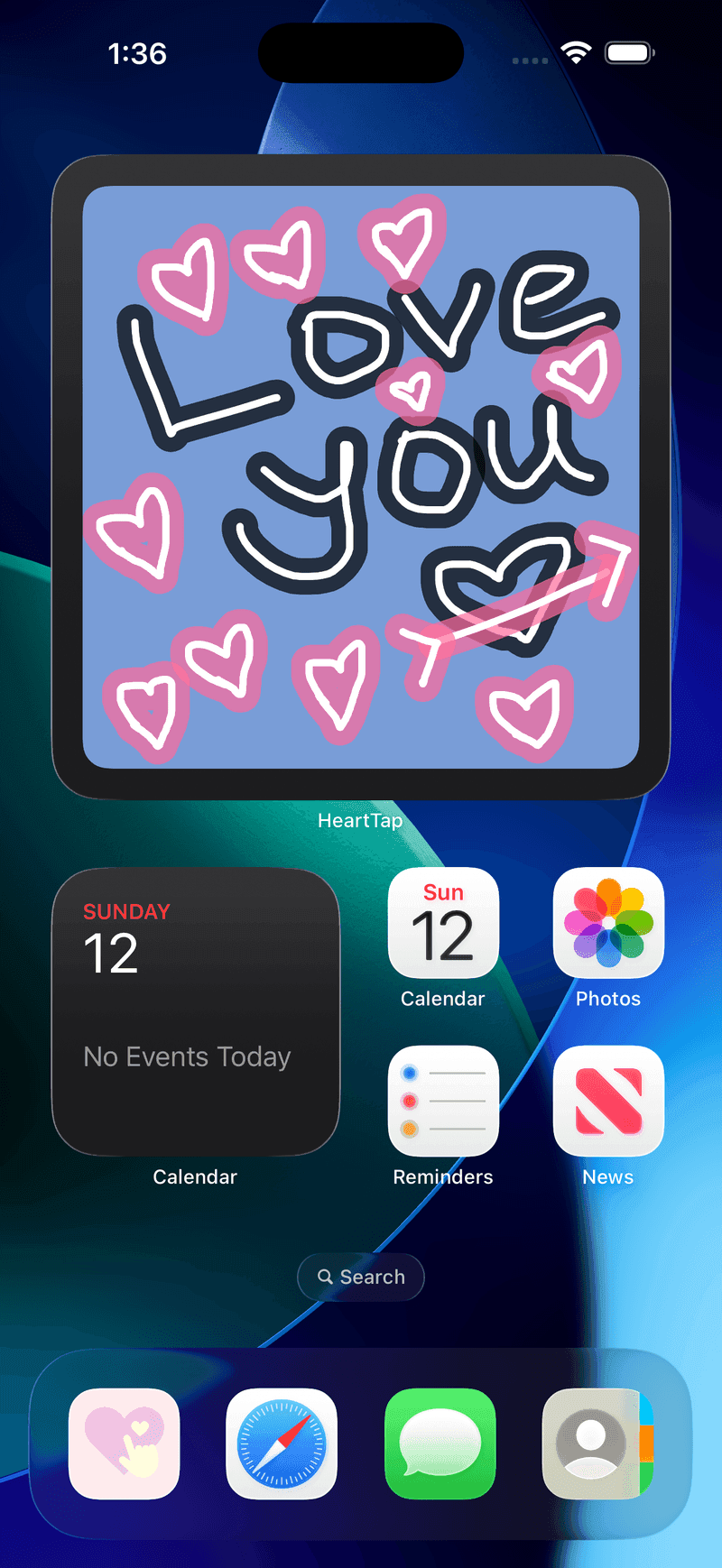
Widgets are small, and lock screen widgets are very small, so detail is wasted. Thick strokes and few of them read far better than careful line work. Big letters, a simple shape and a lot of empty space is the format that actually survives being shrunk into a corner of someone’s screen.
Colour contrast matters more than it does on paper. A pale drawing on a pale background vanishes at widget size, so pick a background colour first and then a stroke colour that fights it.
The shared canvas
The live canvas is a different thing from sending a picture. Both of you are on the same surface at once, strokes appear as they are drawn, and what you end up with is made by two people rather than sent by one. It is closer to sitting at a table with the same piece of paper than to messaging.
It works best when you are both free at the same time, which makes it awkward across large time differences and excellent for couples separated by a commute rather than a continent. Anything you make together can be sent to the widget afterwards.
Frequently asked questions
How do you draw on your partner’s lock screen?
Both of you install a drawing widget app and link your accounts, they add the widget to their lock screen, and then anything you draw and send appears there. On iPhone, the lock screen widget is added by touching and holding the lock screen and choosing Customise, which is a separate flow from the home screen.
Can you draw together at the same time?
In HeartTap, yes. The shared canvas is a live session where both of you draw on the same surface and see each other’s strokes appear as they happen. Most drawing widget apps only support sending a finished drawing rather than making one together.
Do drawings show up on the home screen too?
Yes. The same drawing can appear on a home screen widget, where there is considerably more room for it, and in your shared timeline where it can be replied to.
What if my drawing looks bad?
That is broadly the appeal. Nobody in this category is producing art, and a badly drawn heart from a specific person outperforms a good stock image every time. Thick strokes and low ambition also happen to be what works at widget size.
Put them on your home screen tonight
Free to download on iPhone and Android. Link with your partner in under a minute, then send your first photo, drawing or check-in.