

Guide
How to send a photo to your partner’s home screen
Sending a photo to someone else’s home screen sounds like it should require something exotic, and it does not. It needs an app installed on both phones with the two accounts linked to each other, plus a widget placed on the receiving phone. After that, posting a photo on one device updates the widget on the other within seconds.
Last updated
What no app can do is put a photo on the home screen of someone who has not installed anything. Widgets can only be added by the person holding the phone, which is a deliberate platform restriction on both iOS and Android and is not going to change.
Step by step
- 1Both install the appYou both need the same app. Install HeartTap from the App Store or Google Play, whichever applies to each of you.
- 2Link your accountsOne of you sends an invite link from inside the app and the other opens it. This is what tells the app which two phones belong together.
- 3Have them add the widgetThe person who wants to see your photos needs the widget on their own home screen. You cannot add it for them remotely. Our iPhone and Android guides cover it.
- 4Post your photoOpen the app, choose a photo or take one, add a caption if you want, and post it.
- 5Wait a few secondsA silent push tells their phone to refresh, and the widget redraws with your photo. There is nothing they need to tap, and they do not have to open the app.
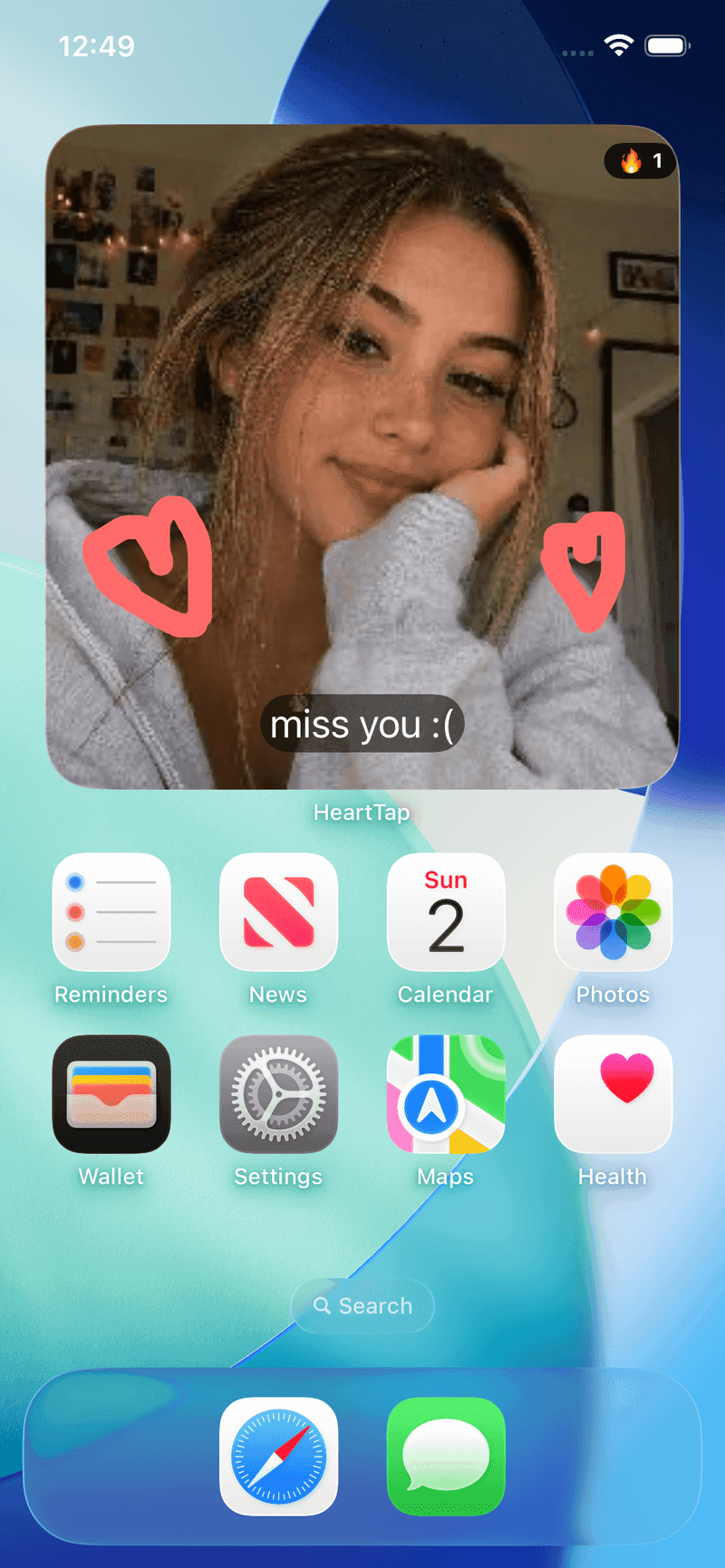
Choosing photos that work as widgets
A widget is a small square or rectangle, so a photo that works beautifully in a gallery can be unrecognisable once cropped. Close-ups work. Wide shots with a small figure in the middle do not, because the figure disappears when the frame tightens.
Faces near the centre survive cropping best, since widget sizes crop from the edges. Anything important at the very top or bottom of a portrait photo is likely to be cut, so leave a little room around whatever matters.
Very dark photos tend to disappear against a dark wallpaper. If your partner uses a dark background, brighter images stand out considerably more.
Photos, video or a drawing
HeartTap also accepts short videos and hand-drawn notes on the same widget, and there is no rule that the widget has to hold a photograph. A drawing takes ten seconds, requires no camera and is much harder to send thoughtlessly, which is why a lot of couples end up using it more than the camera.
A plain colour with a caption is the lowest-effort option of all. On days where a photo is more than you can face, a coloured background and three words still updates their screen.
Frequently asked questions
Can I put a photo on someone’s home screen without them installing anything?
No, and any app claiming otherwise is misrepresenting what it does. Widgets can only be added by the person holding the phone. Both iOS and Android enforce this, and it is a deliberate protection rather than a limitation waiting to be lifted.
How quickly does the photo appear?
Usually within seconds. A silent push notification tells the receiving phone to refresh the widget. On Android, battery optimisation can delay this, which is why our Android guide recommends setting the app to Unrestricted.
What size photo works best in a widget?
Anything reasonably close up, with the important part near the centre. Widgets crop from the edges, so faces at the middle survive and wide landscape shots lose whatever made them interesting.
Can I send a video instead?
Yes. HeartTap supports short videos on the status widget as well as photos, drawings and plain colours with a caption.
Put them on your home screen tonight
Free to download on iPhone and Android. Link with your partner in under a minute, then send your first photo, drawing or check-in.